> ## Documentation Index
> Fetch the complete documentation index at: https://autorender.io/docs/llms.txt
> Use this file to discover all available pages before exploring further.
# Amazon S3
> Connect an Amazon S3 bucket to Autorender and transform your AWS-hosted assets in place.
Connecting an S3 source lets Autorender read objects straight from your bucket and deliver them transformed. Works with Amazon S3 and any S3-compatible service (MinIO, DigitalOcean Spaces) via a custom endpoint.
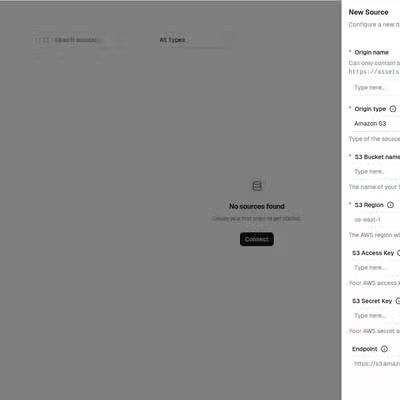
## Add your source to Autorender
In the dashboard, open **Sources**, click **Connect**, and choose **Amazon S3**. See [Connect a source](/docs/storage/introduction#connect-a-source-in-the-dashboard) for the full walkthrough. Then fill in the fields below.
## Field mapping
Each field on the Autorender form maps to a value from your AWS Console:
| AWS value | Autorender field | Example |
| :---------------------------- | :----------------- | :----------------------------------------- |
| Bucket name | **S3 Bucket Name** | `acme-assets` |
| AWS region | **S3 Region** | `us-east-1` |
| IAM access key ID | **S3 Access Key** | `AKIAIOSFODNN7EXAMPLE` |
| IAM secret access key | **S3 Secret Key** | `wJalrXUtnFEMI/K7MDENG/bPxRfiCYEXAMPLEKEY` |
| — | **Origin Name** | `acme-assets` |
| Endpoint (S3-compatible only) | **Endpoint** | `https://s3.amazonaws.com` |
The **Origin Name** is your own label for the source and becomes part of every delivery URL: `https://assets.autorender.io/{workspace}-{origin}/{file_path}`. For a public bucket you can leave the access key and secret key blank.
Paste the bucket **name** (`acme-assets`), not its ARN (`arn:aws:s3:::acme-assets`) and not the S3 URL. The name is what appears in the bucket list in the S3 console.
## Where to find each value
Open the **S3 Management Console** and find your bucket in the list. The name is the column you click; the region is shown next to it (e.g. `us-east-1`).
Paste the bucket **name** (`acme-assets`), not its ARN. The Region must match the bucket's actual region, or reads fail.
We recommend a dedicated IAM user with a custom policy granting only `s3:GetObject` on this one bucket, so a leaked key can reach nothing else. The `AmazonS3ReadOnlyAccess` managed policy also works but grants read access to every bucket in the account.
Under the user's **Security credentials**, create an access key. Paste the access key ID into **S3 Access Key** and the secret access key into **S3 Secret Key**.
The secret access key is shown only once, at creation. Copy it before you close the dialog — AWS will not display it again, and neither will Autorender after the source is created.
Leave **Endpoint** at the default `https://s3.amazonaws.com` for Amazon S3. For MinIO or DigitalOcean Spaces, enter that service's endpoint instead.
Scope the IAM policy to the exact objects you deliver: `"Action": "s3:GetObject"` on `"Resource": "arn:aws:s3:::acme-assets/*"`. That grants reads on the bucket's objects and nothing more.
## Next steps
Build a delivery URL for objects in your bucket.
Resize, crop, and convert the assets you deliver.