> ## Documentation Index
> Fetch the complete documentation index at: https://autorender.io/docs/llms.txt
> Use this file to discover all available pages before exploring further.
# Google Cloud Storage
> Connect a Google Cloud Storage bucket to Autorender and transform your GCS-hosted assets in place.
Connecting a GCS source lets Autorender read objects straight from your Google Cloud Storage bucket and deliver them transformed. Authentication uses a service account key you paste in full.
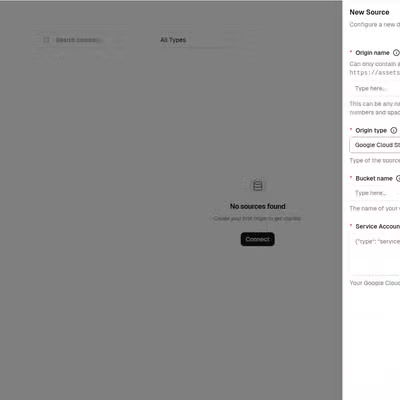
## Add your source to Autorender
In the dashboard, open **Sources**, click **Connect**, and choose **Google Cloud Storage**. See [Connect a source](/docs/storage/introduction#connect-a-source-in-the-dashboard) for the full walkthrough. Then fill in the fields below.
## Field mapping
Each field on the Autorender form maps to a value from your Google Cloud Console:
| Google Cloud value | Autorender field | Example |
| :------------------------------ | :----------------------- | :----------------------------------------------------------------------- |
| Bucket name | **Bucket Name** | `acme-assets` |
| Service account key file (JSON) | **Service Account JSON** | The full JSON key file contents (a single JSON object, roughly 20 lines) |
| — | **Origin Name** | `acme-assets` |
The **Origin Name** is your own label for the source and becomes part of every delivery URL: `https://assets.autorender.io/{workspace}-{origin}/{file_path}`.
Paste the full **contents** of the JSON key file into **Service Account JSON**, not the file path and not the download URL. Paste everything from the opening brace to the closing brace, including the private key.
## Where to find each value
Open **Cloud Storage** in the Google Cloud Console and copy the bucket's name from the list (e.g. `acme-assets`).
Go to **IAM & Admin** → **Service Accounts** and create an account (e.g. `autorender-read-only`). Grant it the **Storage Object Viewer** role on this bucket only, so a leaked key can reach nothing else.
On the account's **Keys** tab, click **Add Key** → **Create new key** → **JSON**. The file downloads once.
Google downloads the JSON key a single time and cannot re-issue it. Keep your copy — Autorender encrypts it on submission and never displays it again.
Open the downloaded file and paste its full contents into the field.
Paste the JSON **contents**, not the file path — the entire object from the downloaded key file.
## Next steps
Build a delivery URL for objects in your bucket.
Resize, crop, and convert the assets you deliver.