> ## Documentation Index
> Fetch the complete documentation index at: https://autorender.io/docs/llms.txt
> Use this file to discover all available pages before exploring further.
# Introduction
> Connect an existing storage bucket to Autorender and transform its assets in place — no migration, no re-upload.
Connecting external storage lets Autorender read assets straight from your own bucket or container and deliver them transformed. You keep your files where they are; Autorender fetches an object only when a delivery URL requests it.
You can connect external storage for:
* Serving product images from an S3 bucket without copying them into Autorender.
* Adding on-the-fly resizing and format conversion to assets already sitting in Google Cloud Storage or Azure Blob Storage.
* Delivering images from any public web server through a [Source Path](/docs/storage/source-path).
## Supported providers
Connect an S3 bucket or any S3-compatible service.
Connect a GCS bucket with a service account key.
Connect a Blob container with a connection string.
## Connect a source in the dashboard
Every provider follows the same three steps in the dashboard. The credentials you enter differ per provider — see each provider's page for its field mapping.
Open [app.autorender.io](https://app.autorender.io).
The Sources page lists every source connected to your workspace.
Choose Amazon S3, Google Cloud Storage, or Azure Blob Storage, then fill in the provider's fields.
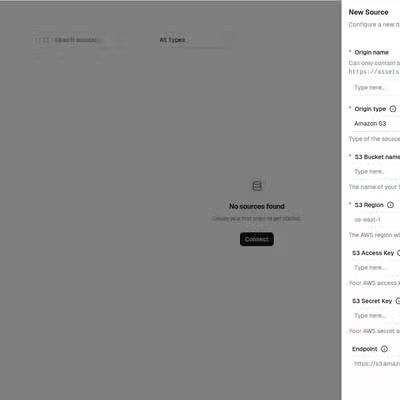
The source is usable as soon as you create it — the first delivery URL that references it triggers the first read from your bucket.
## Access your assets
Once a source is connected, every asset in the bucket is reachable at this URL structure:
```text theme={null}
https://assets.autorender.io/{workspace}-{origin}/{transforms}/{file_path}
```
* `workspace` — your Autorender workspace ID (e.g. `aqucPWk0NG`).
* `origin` — the Origin Name you set when creating the source (e.g. `acme-assets`).
* `transforms` — optional transform parameters (e.g. `w_800,c_fill`). Omit this segment to serve the original.
* `file_path` — the object's path inside your bucket (e.g. `products/chair.jpg`).
To resize an asset to **800 px** wide (`w_800`):
```text theme={null}
https://assets.autorender.io/aqucPWk0NG-acme-assets/w_800/products/chair.jpg
```
## Credentials and access
Autorender opens a read-only connection to the single bucket or container you name. It reads an object only when a delivery URL requests it — nothing is copied or pre-fetched.
We recommend a dedicated IAM user or service account scoped to read-only on that one bucket (e.g. `s3:GetObject` for S3, Storage Object Viewer for GCS) so a leaked credential can never reach anything else.
Every credential, access key, and connection string is encrypted at rest and is never shown again after the source is created. Store your own copy before you submit.
## Next steps
Map your AWS bucket and IAM keys to Autorender's fields.
Point Autorender at any public web server instead of a bucket.
Resize, crop, and convert the assets you deliver.
Serve AVIF or WebP with a single URL token.