> ## Documentation Index
> Fetch the complete documentation index at: https://autorender.io/docs/llms.txt
> Use this file to discover all available pages before exploring further.

# Crop

> Crop images to exact dimensions with crop modes, positional gravity, and face or object detection.

Crop images from the URL with the `c_` parameter. Crop modes decide how the image fits the target dimensions set by `w_` and `h_`, and positioning tokens decide which part of the image survives the crop.

<Info>
  Crop modes act on the target box defined by `w_` and `h_`. Face and object detection (`fo_`) find the focal point automatically, so you get consistent thumbnails without picking coordinates by hand.
</Info>

## How does it work?

You add a crop mode to the transform segment alongside `w_` and `h_`. Each mode handles the aspect-ratio difference between the source and the target box differently:

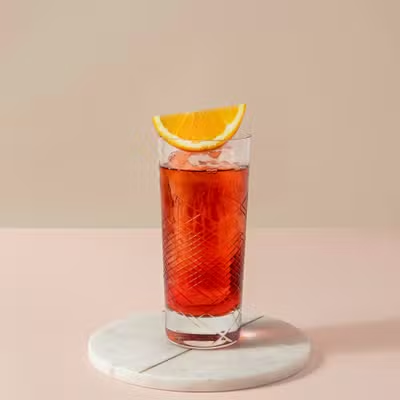
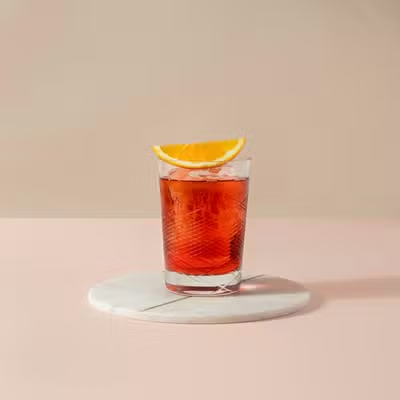
* `c_crop` — cuts the image to the exact dimensions, centering the crop area.
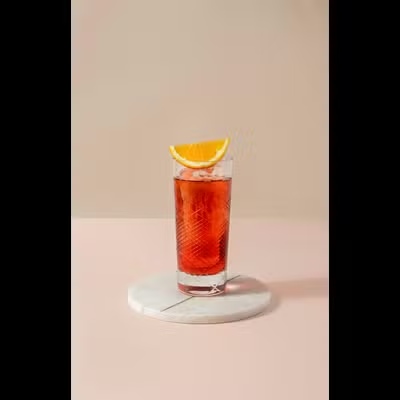
* `c_fill` — scales the image to cover the whole box, cropping the overflow.
* `c_fit` — scales the image to fit inside the box, keeping the entire image.

<Tabs>
  <Tab title="Original image">
    ```text theme={null}
    https://assets.autorender.io/LOKVTtKVGb/doc1/ar-juice.jpg
    ```

    <div className="flex object-contain justify-center mt-4">
      <img src="https://assets.autorender.io/LOKVTtKVGb/doc1/ar-juice.jpg" alt="Original image" className="border border-gray-200 dark:border-gray-800" />
    </div>
  </Tab>

  <Tab title="Crop (c_crop)">
    Cuts to exact dimensions, centered by default.

    ```text theme={null}
    https://assets.autorender.io/LOKVTtKVGb/w_360,h_360,c_crop/doc1/ar-juice.jpg
    ```

    <div className="flex object-contain justify-center mt-4">
      <img src="https://assets.autorender.io/LOKVTtKVGb/w_360,h_360,c_crop/doc1/ar-juice.jpg" alt="Cropped image" className="border border-gray-200 dark:border-gray-800" />
    </div>
  </Tab>

  <Tab title="Fill (c_fill)">
    Covers the whole target box, cropping the overflow.

    ```text theme={null}
    https://assets.autorender.io/LOKVTtKVGb/w_360,h_360,c_fill/doc1/ar-juice.jpg
    ```

    <div className="flex object-contain justify-center mt-4">
      <img src="https://assets.autorender.io/LOKVTtKVGb/w_360,h_360,c_fill/doc1/ar-juice.jpg" alt="Fill mode" className="border border-gray-200 dark:border-gray-800" />
    </div>
  </Tab>

  <Tab title="Fit (c_fit)">
    Fits inside the box, keeping the entire image.

    ```text theme={null}
    https://assets.autorender.io/LOKVTtKVGb/w_360,h_360,c_fit/doc1/ar-juice.jpg
    ```

    <div className="flex object-contain justify-center mt-4">
      <img src="https://assets.autorender.io/LOKVTtKVGb/w_360,h_360,c_fit/doc1/ar-juice.jpg" alt="Fit mode" className="border border-gray-200 dark:border-gray-800" />
    </div>
  </Tab>
</Tabs>

The examples above crop to **360×360 px** (`w_360,h_360`).

## How to position the crop?

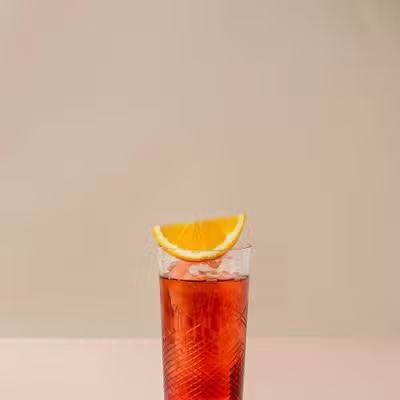
Add `p_` to choose which region of the image the crop keeps. The default is center.

| Position | Description   |
| -------- | ------------- |
| `p_c`    | Center        |
| `p_t`    | Top center    |
| `p_b`    | Bottom center |
| `p_tl`   | Top-left      |
| `p_tr`   | Top-right     |
| `p_bl`   | Bottom-left   |
| `p_br`   | Bottom-right  |

<Tabs>
  <Tab title="Position top (p_t)">
    ```text theme={null}
    https://assets.autorender.io/LOKVTtKVGb/w_360,h_360,c_crop,p_t/doc1/ar-juice.jpg
    ```

    <div className="flex object-contain justify-center mt-4">
      <img src="https://assets.autorender.io/LOKVTtKVGb/w_360,h_360,c_crop,p_t/doc1/ar-juice.jpg" alt="Top crop" className="border border-gray-200 dark:border-gray-800" />
    </div>
  </Tab>

  <Tab title="Position bottom (p_b)">
    ```text theme={null}
    https://assets.autorender.io/LOKVTtKVGb/w_360,h_360,c_crop,p_b/doc1/ar-juice.jpg
    ```

    <div className="flex object-contain justify-center mt-4">
      <img src="https://assets.autorender.io/LOKVTtKVGb/w_360,h_360,c_crop,p_b/doc1/ar-juice.jpg" alt="Bottom crop" className="border border-gray-200 dark:border-gray-800" />
    </div>
  </Tab>
</Tabs>

## How to crop by content?

Autorender can pick the focal point from the image itself instead of a fixed position. Use these when the subject moves around the frame across a catalog of images.

| Strategy      | Description                                       |
| ------------- | ------------------------------------------------- |
| `p_entropy`   | Centers on the most information-rich area         |
| `p_attention` | Centers on the area that draws the most attention |

<Info>
  `p_entropy` and `p_attention` analyze image content at request time, which makes them useful for generating focus-aware thumbnails automatically.
</Info>

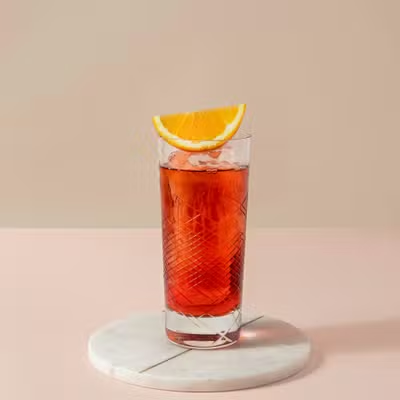
### Face detection (fo\_face)

`fo_face` detects faces and centers the crop on them — ideal for avatars, profile images, and portrait thumbnails.

<Tabs>
  <Tab title="Original">
    ```text theme={null}
    https://assets.autorender.io/LOKVTtKVGb/doc1/face-crop.jpg
    ```
    <div className="flex object-contain justify-center mt-4">
      <img src="https://assets.autorender.io/LOKVTtKVGb/doc1/face-crop.jpg" alt="Original face image" className="border border-gray-200 dark:border-gray-800" />
    </div>
  </Tab>

  <Tab title="Face detection (fo_face)">
    ```text theme={null}
    https://assets.autorender.io/LOKVTtKVGb/fo_face/doc1/face-crop.jpg
    ```

    <div className="flex object-contain justify-center mt-4">
      <img src="https://assets.autorender.io/LOKVTtKVGb/fo_face/doc1/face-crop.jpg" alt="Face detection crop" className="border border-gray-200 dark:border-gray-800" />
    </div>
  </Tab>
</Tabs>

### Object detection (fo\_\<object>)

`fo_<object>` centers the crop on a named object, for example `fo_car`. Object detection recognizes the standard YOLO model classes such as `car`, `dog`, `person`, and `cat`.

<Tabs>
  <Tab title="Original">
    ```text theme={null}
    https://assets.autorender.io/LOKVTtKVGb/doc1/blackporsche.jpg
    ```

    <div className="flex object-contain justify-center mt-4">
      <img src="https://assets.autorender.io/LOKVTtKVGb/doc1/blackporsche.jpg" alt="Original car image" className="border border-gray-200 dark:border-gray-800" />
    </div>
  </Tab>

  <Tab title="Object detection (fo_car)">
    ```text theme={null}
    https://assets.autorender.io/LOKVTtKVGb/fo_car,w_600/doc1/blackporsche.jpg
    ```

    <div className="flex object-contain justify-center mt-4">
      <img src="https://assets.autorender.io/LOKVTtKVGb/fo_car,w_600/doc1/blackporsche.jpg" alt="Car detection crop" className="border border-gray-200 dark:border-gray-800" />
    </div>
  </Tab>
</Tabs>

## Next steps

<CardGroup cols={2}>
  <Card title="Resize and aspect ratio" icon="ruler-combined" iconType="solid" href="/docs/transformations/resize-and-aspect-ratio">
    Set the `w_`, `h_`, and `ar_` values the crop fits into.
  </Card>

  <Card title="Zoom" icon="magnifying-glass-plus" iconType="solid" href="/docs/transformations/zoom">
    Magnify a region before cropping to tighten the focus.
  </Card>

  <Card title="Border radius" icon="circle" iconType="solid" href="/docs/transformations/border-radius">
    Round a face crop into a circular avatar.
  </Card>

  <Card title="Recipes" icon="bookmark" iconType="solid" href="/docs/transformations/recipes">
    Save crop combinations as reusable `t_` tokens.
  </Card>
</CardGroup>