> ## Documentation Index
> Fetch the complete documentation index at: https://autorender.io/docs/llms.txt
> Use this file to discover all available pages before exploring further.
# Grayscale
> Convert an image to black and white by removing all color with the e_grayscale token.
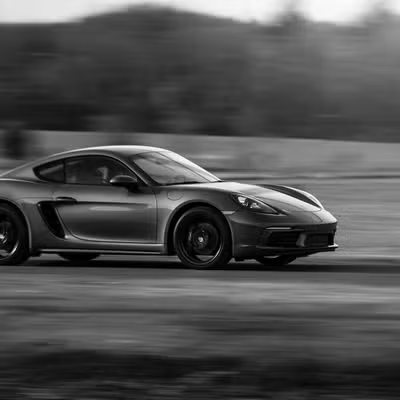
Grayscale strips all color from an image, leaving only tones of gray for a classic black-and-white result.
Add the `e_grayscale` token to the transform segment of any delivery URL:
```bash theme={null}
https://assets.autorender.io/LOKVTtKVGb/e_grayscale/docs/example/porsche.jpg
```
 ## How does it work?
`e_grayscale` is a flag token — it takes no value. It removes color information entirely, mapping every pixel to its gray equivalent.
For threshold-based black-or-white output where each pixel becomes pure black or pure white, use `e_blackwhite` instead. To flip an image to its negative, use `e_invert`.
## When to use it
* Produce timeless black-and-white photography.
* Draw attention to composition and lighting over color.
* Give product shots an elegant, minimal look.
* Create dramatic, classic portraits.
## How do you combine it with other effects?
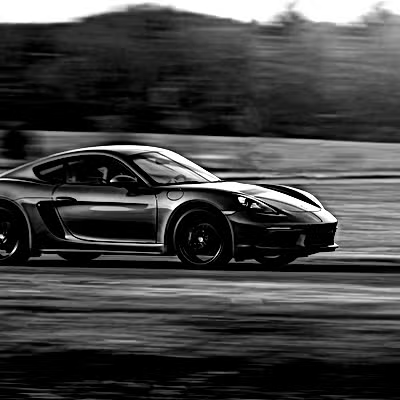
Chain grayscale with contrast and structure to keep detail from going flat. We recommend pairing it with a contrast level around **40**, because removing color tends to reduce apparent separation between tones (e.g. `e_grayscale,e_contrast:40`).
```bash theme={null}
https://assets.autorender.io/LOKVTtKVGb/e_grayscale,e_contrast:40,e_structure:50/docs/example/porsche.jpg
```
## How does it work?
`e_grayscale` is a flag token — it takes no value. It removes color information entirely, mapping every pixel to its gray equivalent.
For threshold-based black-or-white output where each pixel becomes pure black or pure white, use `e_blackwhite` instead. To flip an image to its negative, use `e_invert`.
## When to use it
* Produce timeless black-and-white photography.
* Draw attention to composition and lighting over color.
* Give product shots an elegant, minimal look.
* Create dramatic, classic portraits.
## How do you combine it with other effects?
Chain grayscale with contrast and structure to keep detail from going flat. We recommend pairing it with a contrast level around **40**, because removing color tends to reduce apparent separation between tones (e.g. `e_grayscale,e_contrast:40`).
```bash theme={null}
https://assets.autorender.io/LOKVTtKVGb/e_grayscale,e_contrast:40,e_structure:50/docs/example/porsche.jpg
```
 ## Next steps
Widen or narrow the gap between light and dark areas with `e_contrast`.
Reduce color intensity short of full grayscale with `e_saturation`.
Define edges and detail with `e_sharpen`.
Browse every effect token and how they combine.
## Next steps
Widen or narrow the gap between light and dark areas with `e_contrast`.
Reduce color intensity short of full grayscale with `e_saturation`.
Define edges and detail with `e_sharpen`.
Browse every effect token and how they combine.