> ## Documentation Index
> Fetch the complete documentation index at: https://autorender.io/docs/llms.txt
> Use this file to discover all available pages before exploring further.
# Flip
> Mirror images horizontally, vertically, or both using the flip_ parameter.
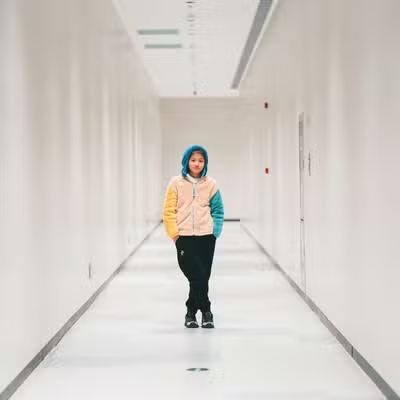
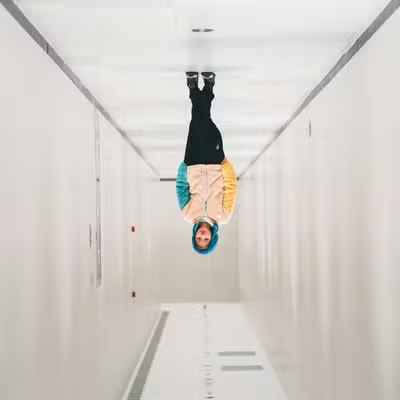
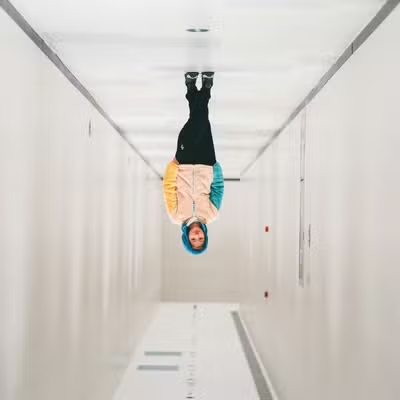
Mirror an image with the `flip_` parameter: `flip_h` flips it left-to-right, `flip_v` flips it top-to-bottom, and `flip_hv` flips both axes at once.
Flipping mirrors the pixels without rotating them. `flip_hv` mirrors on both axes, which produces the same result as a **180°** rotation.
## How does it work?
You add a flip token to the transform segment. Autorender mirrors the image along the requested axis and returns the result at the same dimensions.
```text theme={null}
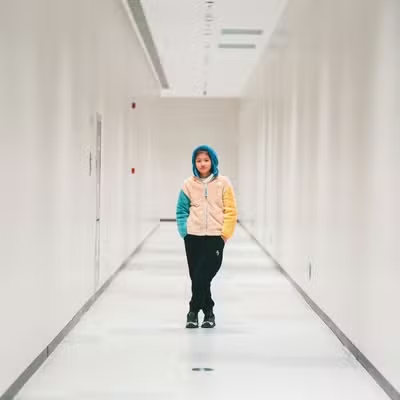
https://assets.autorender.io/LOKVTtKVGb/w_360/doc1/gpose.jpg
```
```text theme={null}
https://assets.autorender.io/LOKVTtKVGb/w_360,flip_h/doc1/gpose.jpg
```
```text theme={null}
https://assets.autorender.io/LOKVTtKVGb/w_360,flip_v/doc1/gpose.jpg
```
```text theme={null}
https://assets.autorender.io/LOKVTtKVGb/w_360,flip_hv/doc1/gpose.jpg
```
| Mode | Description |
| --------- | ------------------------------------ |
| `flip_h` | Mirrors horizontally (left-to-right) |
| `flip_v` | Mirrors vertically (top-to-bottom) |
| `flip_hv` | Mirrors on both axes |
## How to use flip?
* Use `flip_h` to correct mirror-mode selfies or product photos.
* Combine flipped versions of the same image to build symmetrical layouts.
* Apply flip after resizing, but before adding [text](/docs/transformations/text-layers) or [image layers](/docs/transformations/image-layers), so overlays keep their intended orientation.
## Next steps
Rotate by any angle or auto-orient from EXIF data.
Trim to exact dimensions with crop modes and positioning.
Add watermarks and logos on top of the flipped image.
Save flip combinations as reusable `t_` tokens.