> ## Documentation Index
> Fetch the complete documentation index at: https://autorender.io/docs/llms.txt
> Use this file to discover all available pages before exploring further.
# Image layers
> Overlay logos, watermarks, and other images onto a base image using l_image.
Overlay one image on top of another with the `l_image:` parameter. This is how you add watermarks, brand logos, and multi-image compositions in a single URL.
Every layer must end with `fl_layer_apply`, which composites the overlay onto the base image. Autorender preserves PNG and WebP transparency in overlays, so logos keep clean edges.
## How does it work?
You add a `l_image:` block to the transform segment, pointing at the overlay asset's path, and close it with `fl_layer_apply`.
**Format:** `l_image:{image_path}`
```text theme={null}
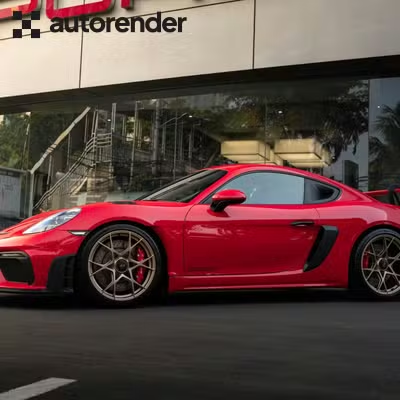
https://assets.autorender.io/LOKVTtKVGb/l_image:logo.svg,fl_layer_apply/doc1/porsche.jpg
```
```text theme={null}
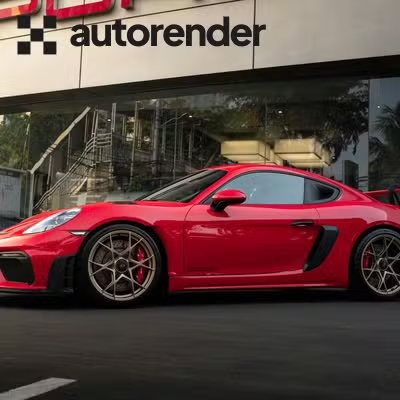
https://assets.autorender.io/LOKVTtKVGb/l_image:logo.svg,lw_300,fl_layer_apply/doc1/porsche.jpg
```
```text theme={null}
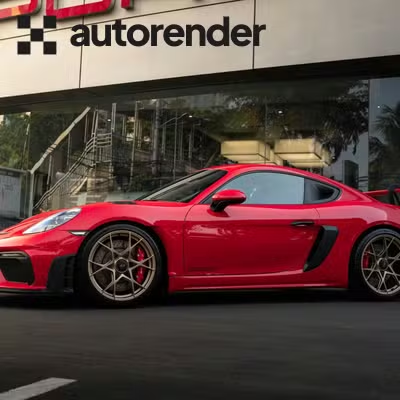
https://assets.autorender.io/LOKVTtKVGb/l_image:logo.svg,lw_300,tp_south-east,fl_layer_apply/doc1/porsche.jpg
```
```text theme={null}
https://assets.autorender.io/LOKVTtKVGb/l_image:logo.svg,lw_200,x_150,y_150,fl_layer_apply/doc1/porsche.jpg
```
## How to size the overlay?
Set the overlay dimensions independently of the base image with `lw_` and `lh_`. Pass one and Autorender scales the other to preserve the overlay's aspect ratio.
| Parameter | Description |
| --------- | ------------------------ |
| `lw_` | Overlay width in pixels |
| `lh_` | Overlay height in pixels |
For example, `lw_300` sizes the overlay to **300 px** (`lw_300`) wide and scales its height to match.
## How to position the overlay?
Anchor the overlay to a region of the base image with `tp_`.
| Code | Placement | Code | Placement |
| ---- | ------------ | ---- | ------------- |
| `nw` | Top-left | `n` | Top-center |
| `ne` | Top-right | `c` | Center |
| `sw` | Bottom-left | `s` | Bottom-center |
| `se` | Bottom-right | | |
For pixel-precise placement, use `x_` and `y_` to set the overlay's coordinates directly.
| Parameter | Description |
| --------- | ------------------------------------------ |
| `x_` | X coordinate from the left edge, in pixels |
| `y_` | Y coordinate from the top edge, in pixels |
Use an SVG for logo overlays (e.g. `l_image:logo.svg`) so the mark stays sharp at any output size, since SVGs scale without pixelation.
## How to stack multiple layers?
Stack overlays by writing one `l_image:` block per asset, each closed with `fl_layer_apply`.
A layer without a trailing `fl_layer_apply` is not composited onto the base image. Close every `l_image:` block with `fl_layer_apply`.
## Next steps
Add text overlays with `l_text:` for captions and banners.
Save watermark and logo layouts as reusable `t_` tokens.
Round a composited image for card layouts.
Size the base image before compositing overlays onto it.