> ## Documentation Index
> Fetch the complete documentation index at: https://autorender.io/docs/llms.txt
> Use this file to discover all available pages before exploring further.
# Text layers
> Composite text overlays onto images with control over font, size, color, and position using l_text.
Overlay text on an image with the `l_text:` parameter. You configure the font, size, style, and alignment inline, then position the text with a placement anchor or exact coordinates — ideal for social cards, promotional images, and automated banners.
Every layer must end with `fl_layer_apply`, which composites it onto the base image so later transforms apply to the result. Text content must be URL-encoded (a space becomes `%20`).
## How does it work?
You add a `l_text:` block to the transform segment. The block carries the font configuration and the URL-encoded text, and closes with `fl_layer_apply`.
**Format:** `l_text:{fontFamily}_{fontSize}_{style}_{align}:{text}`
| Option | Examples | Description |
| ----------- | ------------------------------- | ----------------------------------- |
| Font family | `arial`, `helvetica`, `verdana` | Any system or supported custom font |
| Font size | `24`, `48`, `72` | Size in pixels |
| Style | `bold`, `italic`, `bold_italic` | Text decoration (optional) |
| Alignment | `left`, `center`, `right` | Text anchor within the bounding box |
```text theme={null}
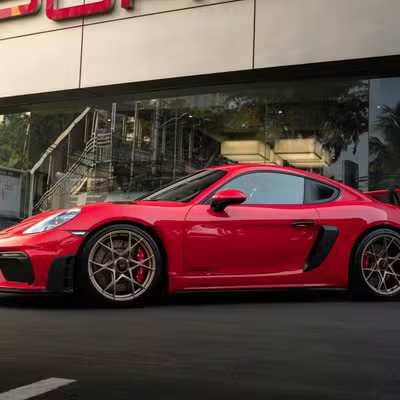
https://assets.autorender.io/LOKVTtKVGb/doc1/porsche.jpg
```
```text theme={null}
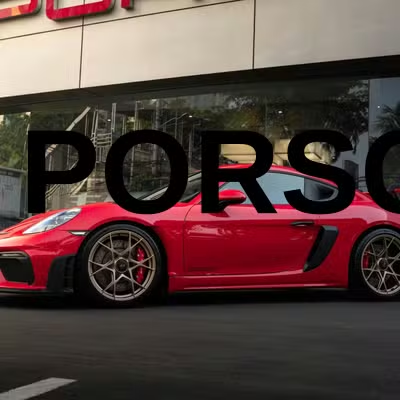
https://assets.autorender.io/LOKVTtKVGb/l_text:arial_120_bold_center:PORSCHE,tp_north-west,fl_layer_apply/doc1/porsche.jpg
```
```text theme={null}
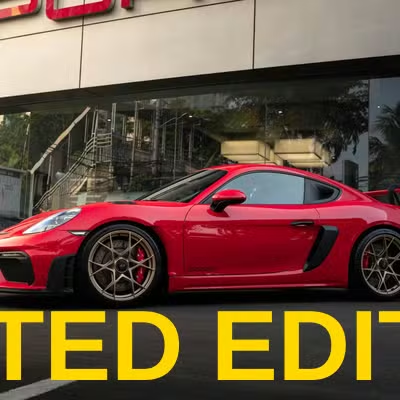
https://assets.autorender.io/LOKVTtKVGb/l_text:arial_100_bold_center:LIMITED%20EDITION,co_rgb:FFD700,tp_south,fl_layer_apply/doc1/porsche.jpg
```
```text theme={null}
https://assets.autorender.io/LOKVTtKVGb/l_text:arial_100_bold_center:FIXED,x_200,y_200,fl_layer_apply/doc1/porsche.jpg
```
Set the text color with `co_rgb:{hex}` — for example, `co_rgb:FFD700` renders gold text, which you can use to keep the overlay readable against the background.
## How to position text?
Add `tp_` to anchor the text to a region of the image.
| Code | Placement | Code | Placement |
| ---- | ------------ | ---- | ------------- |
| `nw` | Top-left | `n` | Top-center |
| `ne` | Top-right | `w` | Left-center |
| `c` | Center | `e` | Right-center |
| `sw` | Bottom-left | `s` | Bottom-center |
| `se` | Bottom-right | | |
For pixel-precise placement, use `x_` and `y_` to set the layer's center point directly.
| Parameter | Description |
| --------- | ------------------------------------------ |
| `x_` | X coordinate from the left edge, in pixels |
| `y_` | Y coordinate from the top edge, in pixels |
## How to add multiple text layers?
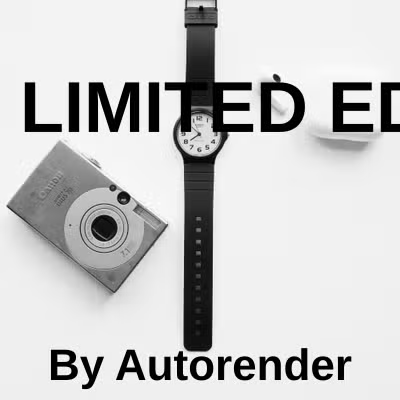
Stack layers by writing one `l_text:` block per line of text, each closed with `fl_layer_apply`. This example places a heading top-left and a subtitle at the bottom.
```text theme={null}
https://assets.autorender.io/LOKVTtKVGb/l_text:arial_72_bold:LIMITED%20EDITION,tp_north-west,fl_layer_apply,l_text:arial_44_bold:By%20Autorender,tp_south,fl_layer_apply/ar-accessories.jpg
```
A layer without a trailing `fl_layer_apply` is not composited, and later transforms apply to the wrong surface. Close every `l_text:` block with `fl_layer_apply`.
## Next steps
Overlay logos and watermarks with `l_image:`.
Save banner and card layouts as reusable `t_` tokens.
Size the base image before compositing text onto it.
Adjust the base image so text stays legible.