> ## Documentation Index
> Fetch the complete documentation index at: https://autorender.io/docs/llms.txt
> Use this file to discover all available pages before exploring further.
# Zoom
> Magnify a region of an image before cropping or resizing using the z_ parameter.
Magnify a region of an image with the `z_` parameter. Zoom is applied before other transformations, so it changes the effective crop area you then resize or crop.
`z_` accepts a factor from **1.0** (original) to **5.0** (maximum magnification). Values above **1.0** zoom in. Pair zoom with a crop mode so the magnified image still lands on your target dimensions.
## How does it work?
You add `z_{factor}` to the transform segment. Autorender magnifies the image around its center — or a position you choose — and then applies the rest of the transforms in the URL. Because zoom runs first, `c_crop` or `c_fill` acts on the zoomed frame.
```text theme={null}
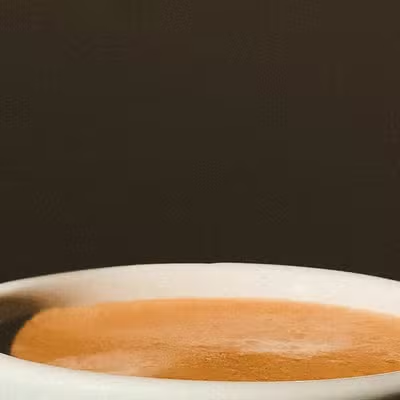
https://assets.autorender.io/LOKVTtKVGb/doc1/coffee_cup.jpg
```
```text theme={null}
https://assets.autorender.io/LOKVTtKVGb/z_1,w_360,h_360,c_crop/doc1/coffee_cup.jpg
```
```text theme={null}
https://assets.autorender.io/LOKVTtKVGb/z_3,w_360,h_360,c_crop/doc1/coffee_cup.jpg
```
The examples above crop to **360×360 px** (`w_360,h_360`) after zooming.
| Factor | Description |
| ------ | ---------------------------------------------- |
| `1.0` | Original, no zoom |
| `1.5` | Moderate zoom, suited to product close-ups |
| `2.0` | Strong zoom for fine details |
| `3.0` | Strong zoom, use with a high-resolution source |
| `5.0` | Maximum magnification |
A zoom factor above **2.0** on a low-resolution source degrades the output, because there are not enough source pixels to fill the magnified frame. Start from a high-resolution source for factors above **2.0**.
## How to control where the zoom focuses?
Combine `z_` with the position parameter `p_` to move the zoom focal point away from center.
| Position | Description |
| -------- | ---------------- |
| `p_c` | Center (default) |
| `p_t` | Top center |
| `p_b` | Bottom center |
| `p_tl` | Top-left |
| `p_br` | Bottom-right |
```text theme={null}
https://assets.autorender.io/LOKVTtKVGb/z_3,w_360,h_360,c_crop,p_t/doc1/coffee_cup.jpg
```
```text theme={null}
https://assets.autorender.io/LOKVTtKVGb/z_3,w_360,h_360,c_crop,p_b/doc1/coffee_cup.jpg
```
For hero images, use a subtle zoom in the **1.1**–**1.3** range to draw the eye to the subject without visibly cropping the frame.
## Next steps
Pair zoom with `c_crop` or `c_fill` to hold your target dimensions.
Set the width and height the zoomed image renders at.
Serve WebP or AVIF with `f_auto` to hold quality on magnified detail.
Save zoom combinations as reusable `t_` tokens.