

AutoRender now supports the Model Context Protocol (MCP), allowing you to connect our transformation tools directly to AI models like Claude. This enables LLMs to understand, manipulate, and generate media assets autonomously using the AutoRender API.Documentation Index
Fetch the complete documentation index at: https://autorender.mintlify.app/llms.txt
Use this file to discover all available pages before exploring further.
Connection URL
Use the following endpoint to connect AutoRender as an MCP server:Setup Flow
1. Add Connector
In your LLM interface (e.g., Claude), navigate to Connectors and add a new custom MCP server using the connection URL provided above.2. Authenticate
Once you click Connect, you will be redirected to the AutoRender authorization page.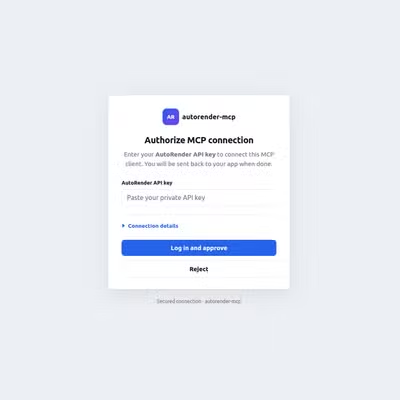
3. Authorize with API Key
Enter your AutoRender API Key from your Dashboard Settings to authorize the connection.If you don’t have an API key, follow our Authentication Guide to create one.
4. Success
Once successfully connected, the LLM can access specific AutoRender tools. The server will automatically guide the LLM on how to use our APIs, making it easier than ever to integrate media processing into your AI workflows.Why use the MCP Server?
- AI-Driven Transformations: Let the model decide the best crop or effect based on context.
- Rapid Integration: No need to write complex boilerplate for simple media tasks.
- Interactive Testing: Chat with your media library to experiment with different transformation strings.