

Integrate your Azure Blob Storage containers to enable real-time transformations for your Azure-hosted media.Documentation Index
Fetch the complete documentation index at: https://autorender.mintlify.app/llms.txt
Use this file to discover all available pages before exploring further.
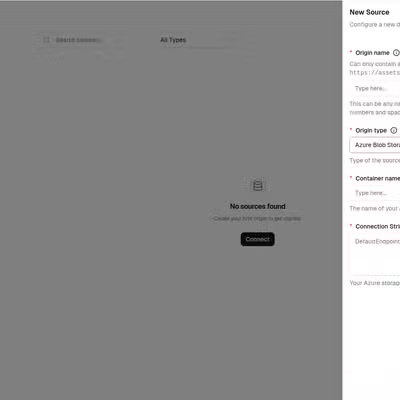
Configuration Fields
To connect an Azure source, provide the following details from your Azure Portal:| Field | Description |
|---|---|
| Origin Name | A unique identifier for this source. Used in your transformation URLs (e.g., https://assets.autorender.io/{workspace}-{origin}/{file_path}). |
| Container Name | The name of the specific blob container within your storage account. |
| Connection String | Your Azure Storage account connection string. Typical format: DefaultEndpointsProtocol=https;AccountName=...;AccountKey=...;EndpointSuffix=core.windows.net |
Where to find this information
- Container Name: Found in the Storage Browser or the Containers menu of your specific Storage Account in the Azure Portal.
- Connection String: Navigate to your Storage Account → Security + networking → Access keys. Click Show keys and copy the Connection string for either
key1orkey2.
AutoRender requires read access to your blobs. Ensure your connection string includes a key with appropriate permissions or that your Shared Access Signature (SAS) is valid if used within a custom connection string.