

Connect your Amazon S3 buckets to AutoRender to start transforming your AWS-hosted assets.Documentation Index
Fetch the complete documentation index at: https://autorender.mintlify.app/llms.txt
Use this file to discover all available pages before exploring further.
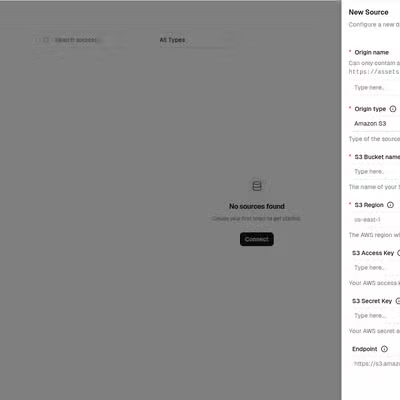
Configuration Fields
To create a new S3 source, you will need the following information from your AWS Console:| Field | Description |
|---|---|
| Origin Name | A unique identifier for this source. This will be used in your URL (e.g., https://assets.autorender.io/{workspace}-{origin}/{file_path}). |
| S3 Bucket Name | The exact name of your AWS S3 bucket. |
| S3 Region | The AWS region where your bucket is located (e.g., us-east-1). |
| S3 Access Key | Your AWS IAM access key ID. (Optional if bucket is public) |
| S3 Secret Key | Your AWS IAM secret access key. (Optional if bucket is public) |
| Endpoint (Optional) | Use this if you are connecting to an S3-compatible service (like MinIO or DigitalOcean Spaces). Defaults to https://s3.amazonaws.com. |
Where to find this information
- Bucket Name & Region: Found in the S3 Management Console under your list of buckets.
- Access & Secret Keys: Generated in the IAM Console. We recommend creating a user with the
AmazonS3ReadOnlyAccesspolicy or a custom policy limited to the specific bucket you and providing only those keys to AutoRender.