

Connect your Google Cloud Storage (GCS) buckets to AutoRender to serve and transform assets stored on Google Cloud.Documentation Index
Fetch the complete documentation index at: https://autorender.mintlify.app/llms.txt
Use this file to discover all available pages before exploring further.
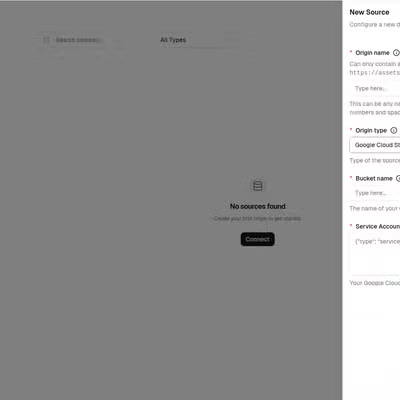
Configuration Fields
To set up a GCS source, you will need to provide:| Field | Description |
|---|---|
| Origin Name | A unique name for this source, used in your transformation URLs (e.g., https://assets.autorender.io/{workspace}-{origin}/{file_path}). |
| Bucket Name | The name of your Google Cloud Storage bucket. |
| Service Account JSON | The full JSON content of your Google Cloud service account key. |
Where to find this information
- Bucket Name: Listed in the Cloud Storage Browser in your Google Cloud Console.
- Service Account JSON:
- Go to IAM & Admin → Service Accounts.
- Create a new service account (e.g.,
autorender-read-only). - Grant it the Storage Object Viewer role for the specific bucket or project.
- Navigate to the Keys tab for the service account.
- Click Add Key → Create new key → JSON.
- Download the file and paste its entire contents into the AutoRender configuration field.