

Documentation Index
Fetch the complete documentation index at: https://autorender.mintlify.app/llms.txt
Use this file to discover all available pages before exploring further.
Overview
Image layers allow you to overlay other images on top of your base image. This is the primary method for adding watermarks, brand logos, or combining multiple visual elements into a single composition.Image Overlay - (l_image)
To add an image overlay, use thel_image: parameter followed by the path to the overlay asset.
Format: l_image:{image_path}
- Basic Overlay
- Resized Logo (lw)
- Watermark (tp)
- Absolute Position (lx, ly)
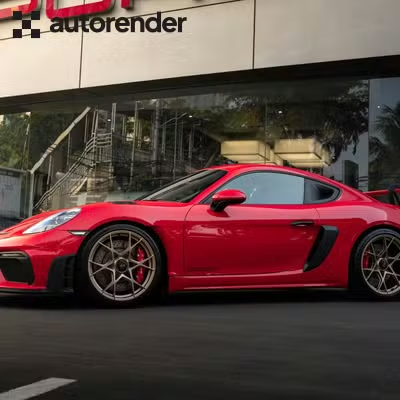
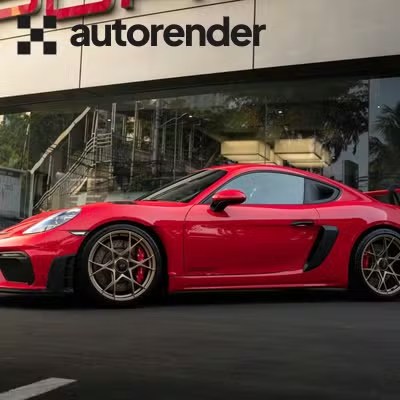
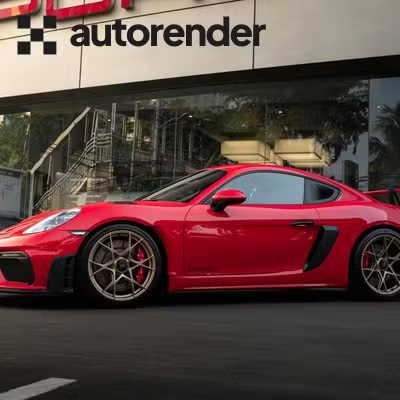
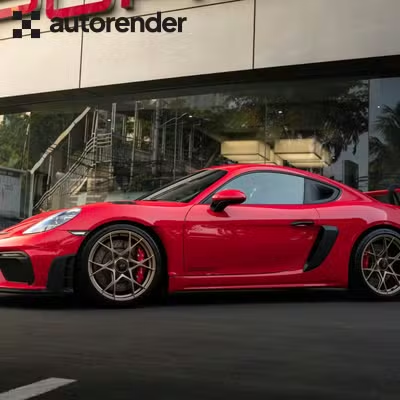
Layer Dimensions - (lw, lh)
Control the size of the overlay independently of the base image.| Parameter | Alias | Description |
|---|---|---|
lw_ | Width | Sets the width of the overlay layer in pixels |
lh_ | Height | Sets the height of the overlay layer in pixels |
If you specify only one dimension (width or height), the overlay will automatically scale while maintaining its original aspect ratio.
Layer Placement - (tp)
Anchor your overlay to specific regions using the Top Placement parameter.| Code | Placement | Code | Placement |
|---|---|---|---|
nw | Top-left | n | Top-center |
ne | Top-right | c | Center |
sw | Bottom-left | s | Bottom-center |
se | Bottom-right |
Absolute Positioning - (lx, ly)
Specify exact pixel coordinates for the overlay image instead of using relative regions.| Parameter | Alias | Description |
|---|---|---|
lx_ | X | Absolute X coordinate from the left edge |
ly_ | Y | Absolute Y coordinate from the top edge |
Best Practices
- SVG for Logos: Use SVG files for image layers whenever possible to ensure logos look sharp at any scale.
- Layer Stacking: Multiple layers can be stacked! Each
l_imageblock must conclude withfl_layer_apply. - Transparency: AutoRender fully supports PNG and WebP transparency in overlay layers.
- Positioning: Combine
tp_withx_andy_parameters within the layer block for precise positioning relative to the anchor point.