Documentation Index
Fetch the complete documentation index at: https://autorender.mintlify.app/llms.txt
Use this file to discover all available pages before exploring further.
Overview
Text layers allow you to composite text overlays on top of your images. This is essential for creating social media cards, product promotional images, or automated banners with dynamic content.
Text Overlay - (l_text)
To add text, use the l_text: parameter followed by the font configuration and your URL-encoded text.
Format: l_text:{fontFamily}_{fontSize}_{style}_{align}:{text}
Configuration Options
| Option | Examples | Description |
|---|
| Font Family | arial, helvetica, verdana | Any system or supported custom font |
| Font Size | 24, 48, 72 | Size in pixels |
| Style | bold, italic, bold_italic | Text decoration (optional) |
| Alignment | left, center, right | Text anchor within the bounding box |
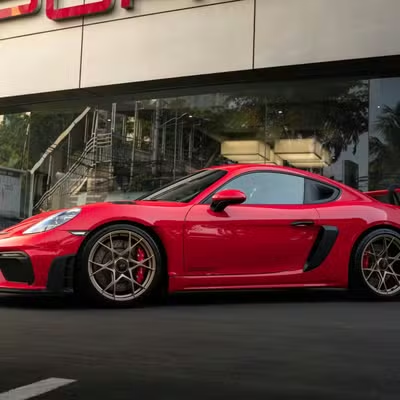
https://assets.autorender.io/LOKVTtKVGb/doc1/porsche.jpg
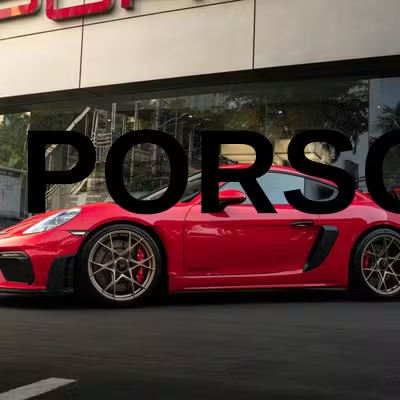
https://assets.autorender.io/LOKVTtKVGb/l_text:arial_120_bold_center:PORSCHE,tp_north-west,fl_layer_apply/doc1/porsche.jpg
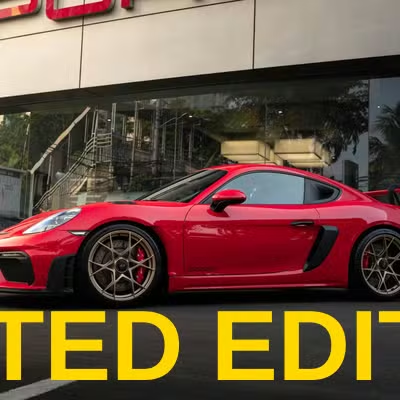
https://assets.autorender.io/LOKVTtKVGb/l_text:arial_100_bold_center:LIMITED%20EDITION,co_rgb:FFD700,tp_south,fl_layer_apply/doc1/porsche.jpg
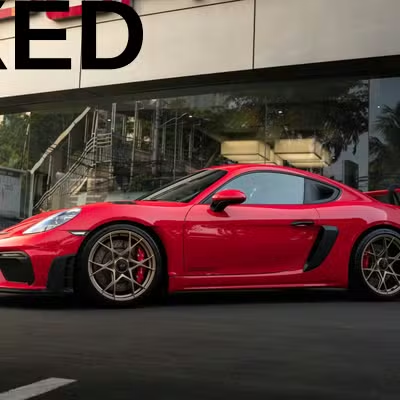
https://assets.autorender.io/LOKVTtKVGb/l_text:arial_100_bold_center:FIXED,lx_200,ly_200,fl_layer_apply/doc1/porsche.jpg
Text Placement - (tp)
Use the tp_ parameter to anchor your text to specific regions of the image.
| code | Placement | code | Placement |
|---|
nw | Top-left | n | Top-center |
ne | Top-right | w | Left-center |
c | Center | e | Right-center |
sw | Bottom-left | s | Bottom-center |
se | Bottom-right | | |
Absolute Positioning - (lx, ly)
Instead of using relative placement (tp_), you can specify exact pixel coordinates for the layer’s center point.
| Parameter | Alias | Description |
|---|
lx_ | X | Absolute X coordinate from the left edge |
ly_ | Y | Absolute Y coordinate from the top edge |
Multiple Text Layers
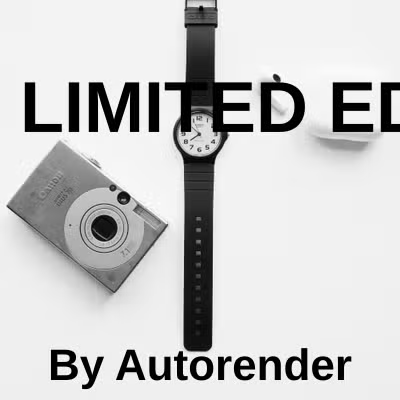
You can stack multiple text layers by defining each layer block ending with fl_layer_apply.
https://assets.autorender.io/LOKVTtKVGb/l_text:arial_72_bold:LIMITED%20EDITION,tp_north-west,fl_layer_apply,l_text:arial_44_bold:By%20Autorender,tp_south,fl_layer_apply/ar-accessories.jpg
Best Practices
- Layer Apply: Always end every layer with
fl_layer_apply to ensure subsequent transformations apply to the base image.
- Encoding: Always URL-encode your text content (e.g., space becomes
%20).
- Contrast: Use the
co_ (color) parameter to ensure text is readable against the background.
- Coordinates: Use
x_ and y_ after tp_ for fine-grained coordinate adjustments if needed.