

br_ parameter. Pass the radius in pixels; set it to at least half the smallest dimension to produce a circle.
br_ takes a radius in pixels. On a square image, a radius of at least half the side length produces a full circle — for example, a 360×360 px image needs br_180 or higher. Previews below cap at 360 px and show the real output dimensions.How does it work?
You addbr_{pixels} to the transform segment. Autorender masks the corners to the given radius after resizing and cropping, so the rounding applies to the final output dimensions. Larger radii round more aggressively:
- 5–20 px: subtle rounding for photos and hero images
- 20–50 px: card and UI corners
- 50 px and up, to half the smallest dimension: circular and oval shapes
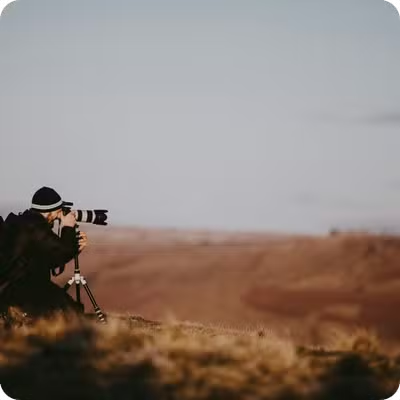
How to round corners?
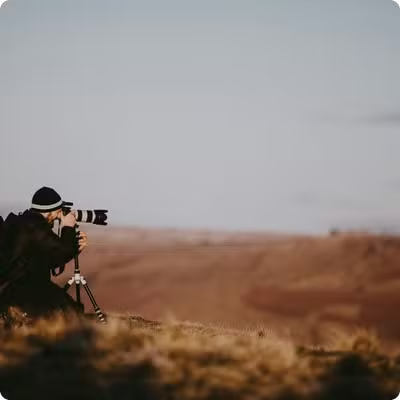
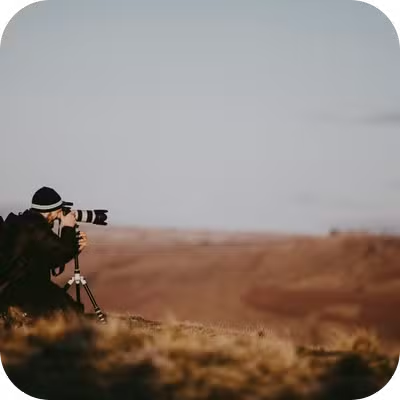
Increasebr_ to round more. The tabs below apply a 10 px, 20 px, and 50 px radius (br_10, br_20, br_50) to the same 360 px wide image.
- Small (10 px)
- Medium (20 px)
- Large (50 px)
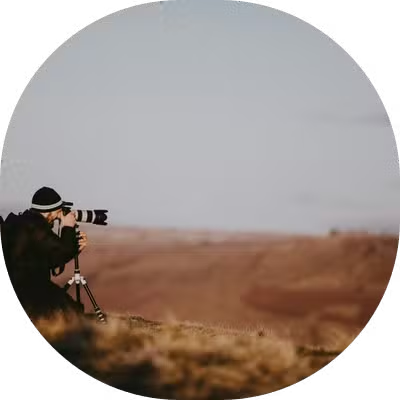
How to make a circular image?
Crop to a square, then set the radius to half the side length. This example crops to 360×360 px (w_360,h_360,c_crop) and applies a 180 px radius (br_180) for a full circle.
How to combine border radius with other transforms?
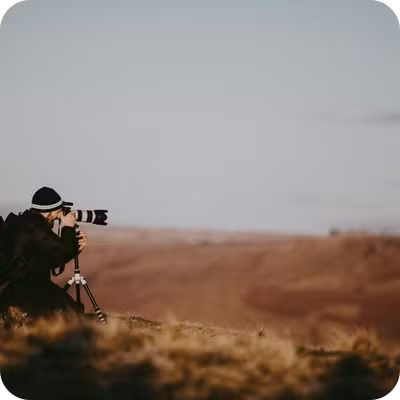
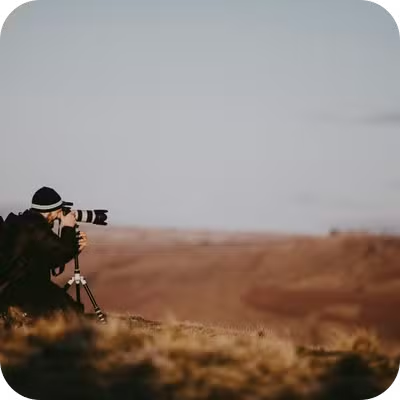
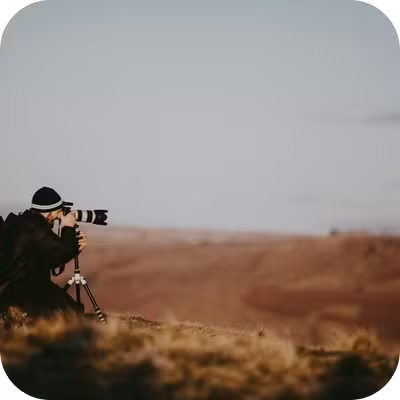
Border radius applies after resize and crop, so it works with any crop mode. The tabs below round a resized image, a cropped square, and a fill-mode crop.- With resize (br_30)
- With crop (br_40)
- With fill (br_50)
Recommended values
A radius larger than half the smallest dimension can clip content near the corners, so keep the subject away from the edges when you round heavily.
Next steps
Crop
Crop to a square before rounding into a circular avatar.
Resize and aspect ratio
Set the output dimensions the corners round against.
Image layers
Composite rounded images into cards and banners.
Recipes
Save rounded-corner combinations as reusable
t_ tokens.