

l_text: parameter. You configure the font, size, style, and alignment inline, then position the text with a placement anchor or exact coordinates — ideal for social cards, promotional images, and automated banners.
Every layer must end with
fl_layer_apply, which composites it onto the base image so later transforms apply to the result. Text content must be URL-encoded (a space becomes %20).How does it work?
You add al_text: block to the transform segment. The block carries the font configuration and the URL-encoded text, and closes with fl_layer_apply.
Format: l_text:{fontFamily}_{fontSize}_{style}_{align}:{text}
- Original
- Basic text
- Styled text (color + position)
- Absolute position (x, y)
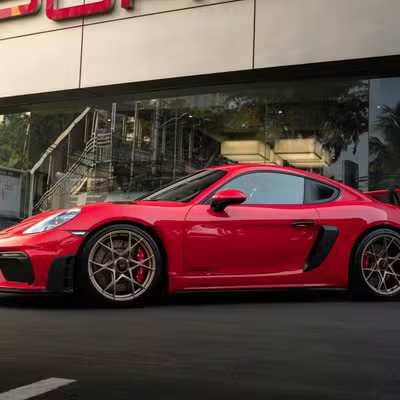
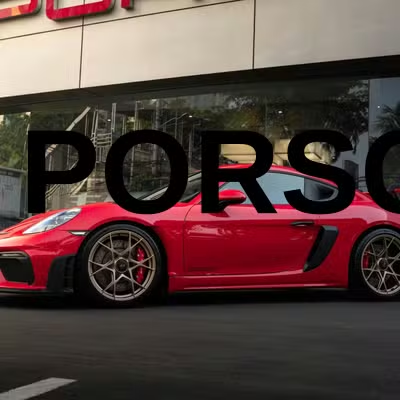
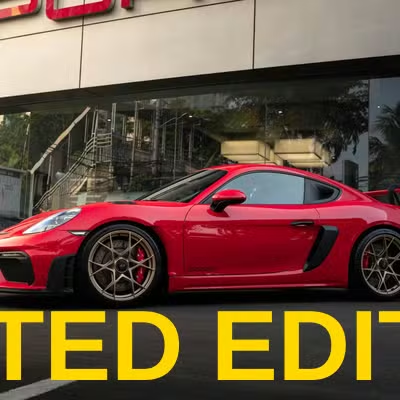

co_rgb:{hex} — for example, co_rgb:FFD700 renders gold text, which you can use to keep the overlay readable against the background.
How to position text?
Addtp_ to anchor the text to a region of the image.
For pixel-precise placement, use
x_ and y_ to set the layer’s center point directly.
How to add multiple text layers?
Stack layers by writing onel_text: block per line of text, each closed with fl_layer_apply. This example places a heading top-left and a subtitle at the bottom.

Next steps
Image layers
Overlay logos and watermarks with
l_image:.Recipes
Save banner and card layouts as reusable
t_ tokens.Crop
Size the base image before compositing text onto it.
Effects
Adjust the base image so text stays legible.